Copy iTunes Playlist to USB Drive with iTunes
Copy iTunes Playlist to USB Drive with iTunes
Without using any external software, you can conveniently copy your songs from iTunes to a USB by following these steps:
Step 1. Insert your USB flash drive into the USB port of your PC.
Step 2. Open it, so it looks like a desktop folder.
Step 3. Open your iTunes library as well, and locate the songs you want to transfer.
-For a song: Just click the song
-For a range of songs: Click the first, press and hold the SHIFT key, then click the last
-For a bunch of selected songs that are far apart: Press and hold the CTRL key, then click each song.
Step 2. Open it, so it looks like a desktop folder.
Step 3. Open your iTunes library as well, and locate the songs you want to transfer.
-For a song: Just click the song
-For a range of songs: Click the first, press and hold the SHIFT key, then click the last
-For a bunch of selected songs that are far apart: Press and hold the CTRL key, then click each song.

Step 4. Once they are highlighted, simply drag them to the folder opened on your desktop in the first step.
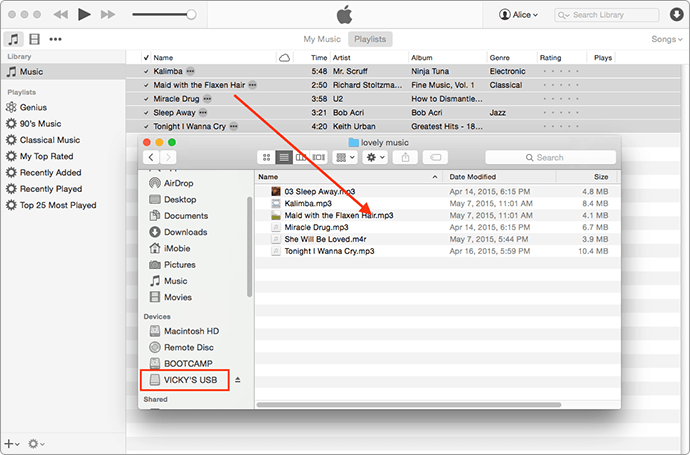
If your iTunes app runs in full-screen, it is advisable you make it smaller before starting the process so that you can easily do the dragging. Note that this process only copy iTunes playlist to USB without modifying your iTunes library.Sponsor Ads:
Gihosoft iPhone Data Recovery is a professional iPhone Data Recovery software to get back all your lost text message, photo, video, call history, note, contact and more from iPhone/iPad/iPod Touch. It offers a full solution to recover your lost data in different tough situations. Besides recovering data directly from iPhone, iPad and iPod touch, it also allows you to recover data from iCloud and iTunes backup files.

Comments
Post a Comment